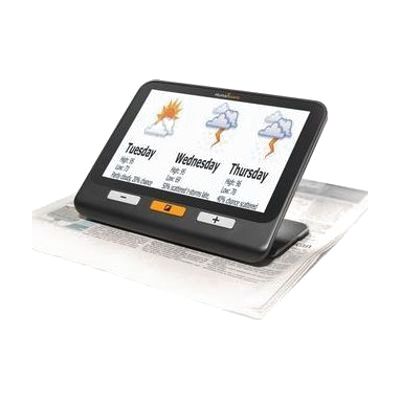
Explore 8 inch Handheld Electronic Video Magnifier
by HumanWare
$1,299.00 ▲ $440.00 (51%)
Price is what the vendor listed when last checked. Confirm it with the vendor before buying.
Last verified September 18, 2026 · classified April 26, 2026
What it is
Summary
AI-generated from vendor-published content · April 26, 2026
The Explore 8 is a handheld electronic video magnifier with an 8-inch touchscreen that enlarges printed text, images, and distant objects in real time using one of two built-in cameras. It's designed for someone with low vision who reads printed materials like books, menus, or prescription labels and also needs to see things at a distance — store signs, presentation boards, or faces across a room. This is a complete, standalone device that works right out of the box with large physical buttons for magnification control, a folding stand for hands-free desktop use, and a built-in rechargeable battery for portable use. At 8 inches, the screen is meaningfully larger than most handheld magnifiers in this size class, but the trade-off is that it's more bulky to carry than compact 4–5 inch models — worth considering if pocketability matters more than screen real estate.
Quick Facts Catalog facts · auto-generated
- AT Act lending
- Insurance
- Medicaid waiver
- Out of pocket
- Vocational rehab
What Setup Looks Like
- Out of the box
- Charge the device via USB-C before first use.
- Power on and point the near camera at text or an image — pinch the touchscreen or press the physical buttons to adjust magnification.
- Toggle to the distance camera using the physical button to view signs or objects across a room.
- With a guide
- Set preferred zoom levels and contrast modes to personalize the device for your most common tasks.
- Connect via HDMI to a TV for large-screen viewing at home — refer to the user manual for display configuration (approximately 15–20 minutes). See manufacturer support resources for detailed instructions.
- With professional help
- An optometrist or low vision specialist (CLVT/OT) can assess whether this magnification range and screen size match your functional vision needs.
- If funded through insurance or a state program, a vision rehabilitation therapist may be required for evaluation and prescription — expect 1–2 clinical visits.
Getting it
Try Before You Buy
Devices like this are often available to borrow through your state's AT Act program — typically free or low-cost — so you can try it before buying or pursuing funding.
Where to Get It
This is the vendor WhatCanHelp tracks for this product — it may also be available from other retailers or a local supplier, and prices vary.
Some links may be affiliate links — WhatCanHelp may earn a small commission from purchases at no extra cost to you. More on affiliates →
As an Amazon Associate we earn from qualifying purchases.
How to Fund This
Equipment like this is often pursued through official state programs. These are common starting points — each program decides its own eligibility and what it covers, so the first step is always a phone call.
Compare & explore
Sources & fine print
Vendor facts (name, price, platforms, vendor link) sourced from HumanWare — view on vendor site; last verified September 18, 2026.
Classification & description AI-generated from vendor-published content on April 26, 2026 · confidence: high. Vendor specs may lag; verify before relying on details in a clinical or funding artifact.