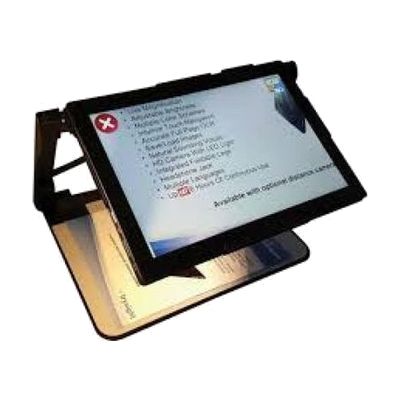
Mercury 13 Low Vision Computer System
by TrySight
Last verified June 17, 2026 · classified April 26, 2026
What it is
Summary
AI-generated from vendor-published content · April 26, 2026
The Mercury 13 is a portable, all-in-one video magnifier built on a Windows Surface Pro tablet, combining live camera magnification, OCR text-to-speech reading, and a full Windows computer in a single foldable unit with a 13-inch HD screen. It's designed for someone with low vision who wants one device that handles reading print documents, working on a computer, and switching between near and distance viewing — without carrying multiple pieces of equipment. The package includes a large-print keyboard, trackpad, pre-installed magnification and reading software, and a built-in LED light, making it reasonably complete out of the box. That said, getting the most from the OCR, color contrast settings, and distance viewing split-screen features typically takes time with a low vision specialist or AT professional to configure for your specific vision needs.
Quick Facts Catalog facts · auto-generated
- AT Act lending
- Medicaid waiver
- Out of pocket
- Vocational rehab
What Setup Looks Like
- Out of the box
Unfold the stand, power on the device, and use the pre-installed Zoom Magnifier software to view documents immediately at a basic magnification level. - With a guide
- Connect the large-print keyboard and trackpad using the included instructions.
- Configure preferred color contrast schemes, magnification levels, and OCR language settings using the built-in software menus.
- Allow 30–60 minutes with the user guide or a tutorial video to explore split-screen near/distance modes. See manufacturer support resources for detailed instructions.
- With professional help
- A low vision specialist or assistive technology professional (ATP) can assess the optimal magnification range, contrast settings, and OCR preferences for the user's specific vision loss.
- Expect 1–2 sessions with a certified low vision rehab therapist or ATP for full configuration and training — particularly for OCR workflow and distance viewing features.
Getting it
Try Before You Buy
Devices like this are often available to borrow through your state's AT Act program — typically free or low-cost — so you can try it before buying or pursuing funding.
Where to Get It
Some links may be affiliate links — WhatCanHelp may earn a small commission from purchases at no extra cost to you. More on affiliates →
As an Amazon Associate we earn from qualifying purchases.
How to Fund This
Equipment like this is often pursued through official state programs. These are common starting points — each program decides its own eligibility and what it covers, so the first step is always a phone call.
Compare & explore
Sources & fine print
Vendor facts (name, price, platforms, vendor link) sourced from TrySight — view on vendor site; last verified June 17, 2026.
Classification & description AI-generated from vendor-published content on April 26, 2026 · confidence: high. Vendor specs may lag; verify before relying on details in a clinical or funding artifact.