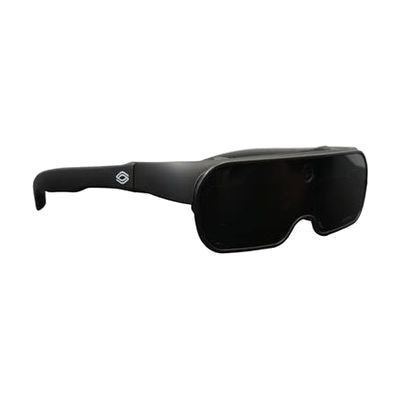
NuCaption | Real-Time Captioning Solution for Deaf & Deaf-Blind
by NuEyes
Price is what the vendor listed when last checked. Confirm it with the vendor before buying.
Last verified September 16, 2026 · classified May 31, 2026
What it is
Summary
AI-generated from vendor-published content · May 31, 2026
NuCaption is a wearable smart glasses system that transcribes spoken conversation into text in real time, displaying captions directly in the user's field of view on OLED lenses — so someone who is deaf or hard of hearing can follow live speech without looking away from the speaker. It's built on the NuEyes Pro 4 LV platform, which means the same glasses also support low vision features like display customization, making this a dual-purpose solution for people with both hearing and vision loss. This is a complete, self-contained hardware package — no separate phone or computer is required in conversation mode, though setup and account configuration will need to happen before first use. At nearly $4,000, it's a significant investment, and speech recognition accuracy in noisy or multi-speaker environments can vary; anyone considering it for workplace or classroom use should trial it in those settings before committing.
Quick Facts Catalog facts · auto-generated
- AT Act lending
- Out of pocket
- School district
- Vocational rehab
What Setup Looks Like
- Out of the box
Put on the glasses and activate the captioning feature — captions appear in the display for nearby speech. - With a guide
- Configure display preferences (text size, contrast, background color) using the touchpad controls and onscreen menu.
- Connect to Wi-Fi or verify the device's speech recognition mode (cloud vs. on-device) during initial setup — plan 30–60 minutes with the manufacturer's setup guide.
- With professional help
- An audiologist or AT specialist can help evaluate whether NuCaption is appropriate compared to alternative captioning solutions (CART, smartphone apps, hearing loop systems).
- For Deaf-Blind users, an orientation and mobility specialist or AT professional familiar with combined vision/hearing loss may need to optimize display and tactile settings for individual use.
- See manufacturer support resources for detailed instructions.
Getting it
Try Before You Buy
Devices like this are often available to borrow through your state's AT Act program — typically free or low-cost — so you can try it before buying or pursuing funding.
Where to Get It
This is the vendor WhatCanHelp tracks for this product — it may also be available from other retailers or a local supplier, and prices vary.
Some links may be affiliate links — WhatCanHelp may earn a small commission from purchases at no extra cost to you. More on affiliates →
As an Amazon Associate we earn from qualifying purchases.
How to Fund This
Equipment like this is often pursued through official state programs. These are common starting points — each program decides its own eligibility and what it covers, so the first step is always a phone call.
Compare & explore
Sources & fine print
Vendor facts (name, price, platforms, vendor link) sourced from NuEyes — view on vendor site; last verified September 16, 2026.
Classification & description AI-generated from vendor-published content on May 31, 2026 · confidence: high. Vendor specs may lag; verify before relying on details in a clinical or funding artifact.