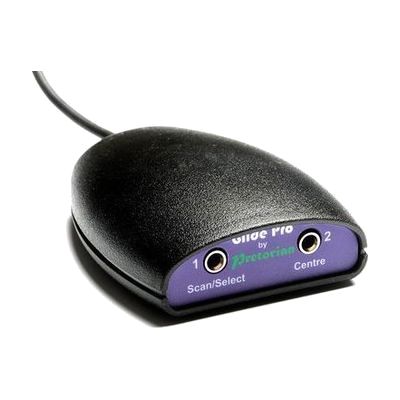
Glide Pro
Price is what the vendor listed when last checked. Confirm it with the vendor before buying.
Last verified September 16, 2026 · classified April 26, 2026
What it is
Summary
AI-generated from vendor-published content · April 26, 2026
The Glide Pro is a hardware switch interface that connects via USB and translates input from one or two external switches into cursor movement and clicking, letting someone control a computer or tablet pointer without using a standard mouse. It's designed for people who can activate a switch but can't operate a standard mouse or trackpad — for example, due to limited hand function, tremor, or paralysis. The device works across Windows, Mac, Chromebook, iOS, and Android without any driver installation, making setup straightforward once you have compatible switches. This is just the interface box — you'll need to purchase compatible switches separately, and getting the scanning speed and cursor settings dialed in for a specific user often benefits from guidance from an OT or ATP.
Quick Facts Catalog facts · auto-generated
- AT Act lending
- Medicaid waiver
- Out of pocket
- School district
- Vocational rehab
What Setup Looks Like
- Out of the box
- Plug the Glide Pro into the USB port of your PC, Mac, Chromebook, iOS, or Android device — it is recognized automatically with no software installation.
- Connect compatible external switches to the switch jacks on the device and begin using them to move the cursor.
- With a guide
- Acquire one or two compatible external switches if not already owned.
- Review the Glide Pro user guide to understand joystick vs. directional switch modes and configure sensitivity or cursor speed settings to match the user's motor ability.
- Test different switch placement and timing adjustments over 1-2 sessions to optimize usability. See manufacturer support resources for detailed instructions.
- With professional help
- An occupational therapist (OT) or assistive technology professional (ATP) should evaluate the user's motor control to recommend the most appropriate switch type, placement, and cursor speed settings.
- Expect 1-2 assessment and configuration sessions to optimize the setup for functional computer access.
Getting it
Try Before You Buy
Devices like this are often available to borrow through your state's AT Act program — typically free or low-cost — so you can try it before buying or pursuing funding.
Where to Get It
This is the vendor WhatCanHelp tracks for this product — it may also be available from other retailers or a local supplier, and prices vary.
Some links may be affiliate links — WhatCanHelp may earn a small commission from purchases at no extra cost to you. More on affiliates →
As an Amazon Associate we earn from qualifying purchases.
How to Fund This
Equipment like this is often pursued through official state programs. These are common starting points — each program decides its own eligibility and what it covers, so the first step is always a phone call.
Compare & explore
Sources & fine print
Vendor facts (name, price, platforms, vendor link) sourced from Inclusive Technology — view on vendor site; last verified September 16, 2026.
Classification & description AI-generated from vendor-published content on April 26, 2026 · confidence: high. Vendor specs may lag; verify before relying on details in a clinical or funding artifact.