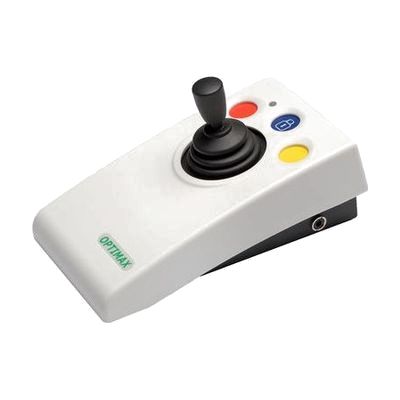
OPTIMAX Wireless Joystick
Last verified June 20, 2026 · classified April 26, 2026
What it is
Summary
AI-generated from vendor-published content · April 26, 2026
The OPTIMAX Wireless Joystick is a specialized computer pointing device that replaces a standard mouse, letting users control cursor movement via a joystick with very light touch force — well suited for people who find a conventional mouse difficult or impossible to use due to limited hand strength, reduced range of motion, or poor fine motor control. It connects wirelessly over roughly 10 metres to PCs, Macs, iPads, and iPhones, and includes two external switch sockets on the receiver so separate click switches can be substituted for the onboard buttons if needed. The package is fairly complete out of the box — three interchangeable joystick handles, a wireless USB receiver, and a battery are all included — but you'll want guidance on which handle works best for a specific user and how to configure the four cursor speed settings for their motor profile. One honest heads-up: while it's labelled plug-and-play, users with complex motor profiles will get noticeably better outcomes with an occupational therapist or ATP helping dial in the speed settings, handle choice, and switch placement rather than guessing through trial and error.
Quick Facts Catalog facts · auto-generated
- AT Act lending
- Medicaid waiver
- Out of pocket
- School district
- Vocational rehab
What Setup Looks Like
- Out of the box
- Insert the 9V battery into the joystick.
- Plug the wireless USB receiver into a PC or Mac USB port (or connect via Bluetooth adapter for iOS/iPadOS).
- Move the joystick to confirm cursor response — no driver installation required on most systems.
- With a guide
- Try all three included handles to identify the one that best fits the user's grip or hand position.
- Cycle through the four cursor speed settings and choose the most controllable level for the user.
- If external switches are needed, connect left/right click switches to the receiver's switch sockets and test activation.
- For iOS/iPadOS, enable Switch Control or AssistiveTouch in Settings > Accessibility before pairing. Allow 30–60 minutes for full setup. See manufacturer support resources for detailed instructions.
- With professional help
- An occupational therapist (OT) or assistive technology professional (ATP) should assess hand function to select the optimal handle, activation force tolerance, and cursor speed.
- If the joystick is being used with AAC software or switch scanning, an SLP or ATP should confirm integration with the user's broader access method setup.
- Expect 1–2 sessions to configure and trial the device in context. See manufacturer support resources for detailed instructions.
Getting it
Try Before You Buy
Devices like this are often available to borrow through your state's AT Act program — typically free or low-cost — so you can try it before buying or pursuing funding.
Where to Get It
Some links may be affiliate links — WhatCanHelp may earn a small commission from purchases at no extra cost to you. More on affiliates →
As an Amazon Associate we earn from qualifying purchases.
How to Fund This
Equipment like this is often pursued through official state programs. These are common starting points — each program decides its own eligibility and what it covers, so the first step is always a phone call.
Compare & explore
Sources & fine print
Vendor facts (name, price, platforms, vendor link) sourced from Inclusive Technology — view on vendor site; last verified June 20, 2026.
Classification & description AI-generated from vendor-published content on April 26, 2026 · confidence: high. Vendor specs may lag; verify before relying on details in a clinical or funding artifact.