Browse Assistive Technology
Products
-

Apple Hearing Accessibility
Free
Apple's hearing accessibility features are built into its devices and cover Live Listen, Live Captions and support for Made for iPhone hearing devices. With Live Listen, your iPhone's microphone picks up people who are speaking from a distance, like across a dining table or in a lecture hall, and sends that sound to your AirPods, Beats headphones, or compatible hearing devices. You can also read Live Captions of the conversation on a paired Apple Watch, or on a nearby iPhone or iPad signed in to the same Apple Account. Apple Watch, iPhone, or iPad can act as a remote to start or stop a session, or jump back a few seconds to catch something you missed. Features and languages vary by region, so check availability before counting on a specific one.
Verified 3 days agoSetup with instructions -
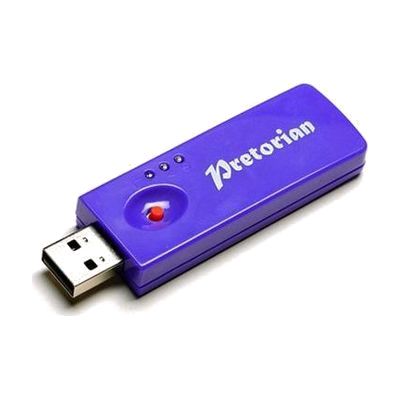
SimplyWorks Receive 2
Est. $60–$120
The Receive 2 is a small wireless receiver that plugs into a computer's USB port and lets up to six SimplyWorks transmitters, such as switches, a mouse, or a joystick, control the computer without cables. It works with any mix of transmitters and has a range of more than 10 meters, so a classroom or therapy room can be set up for one person or several without wires crossing the floor. It needs no driver software and works on Windows and Mac. Two LEDs show when Caps Lock and Drag Lock are on. It must go into a USB port; it won't work in an older PS/2 port, even with an adapter.
Verified 4 days agoSetup with instructions -
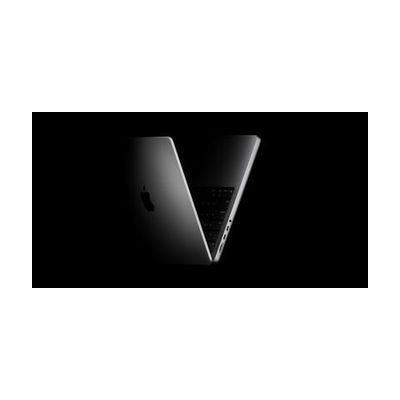
MacBook Pro
$1,599.00
The MacBook Pro is Apple's laptop line, available in 14-inch and 16-inch sizes with M5-family chips and a Liquid Retina XDR display. It is a general-purpose computer, so it is not a single-purpose assistive device, but it runs macOS, which has accessibility settings for vision, hearing, movement, and thinking and learning needs. Those settings can also help with communication, for example by running speech or switch-based communication software. The laptop also has a 12MP camera, a three-mic array, a six-speaker system, and a headphone jack. How much it helps depends on which macOS settings and apps you turn on, so budget time to explore and set them up.
Verified 4 days agoSetup with instructions -
Apple Zoom
Free
Zoom is the built-in screen magnifier on Apple devices. It enlarges what's on the screen so small text and images are easier to see. You can magnify the whole screen, or use Window Zoom to enlarge just one area with a lens you can resize. Follow Focus keeps the magnified view on whatever you select or type. Smart Typing enlarges the text area while leaving the keyboard at normal size. Color filters (inverted, grayscale, grayscale inverted, and low light) can make the magnified area more comfortable to read. Zoom works together with VoiceOver, Apple's screen reader, so you can see and hear the screen at once. On Mac you can split the screen to view content up close and far away at the same time, and set a separate zoom level for each display. On Apple Vision Pro, Zoom can also magnify your surroundings through the headset's camera. Zoom is a software feature, so you need a supported Apple device, and each device has its own settings to learn.
Verified 3 days agoSetup with instructions -

Apple Live Speech & Personal Voice
Free
Live Speech lets you type what you want to say and have your device say it out loud, including during Phone and FaceTime calls and face-to-face conversations. You can save phrases you use often and group them into categories, such as a Coffee Shop set for ordering. You can pick from dozens of system voices or use a Personal Voice, which is a voice you create that sounds like you. Personal Voice is built by reading 10 randomized phrases aloud, and it's aimed at people who are at risk of losing their voice. These are built-in Apple features, so availability varies by device, region, and language.
Verified 3 days agoSetup with instructions -
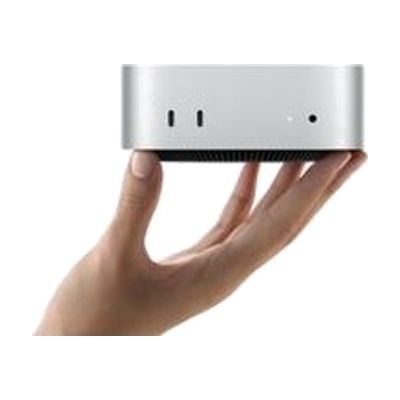
Mac mini
$599.00
The Mac mini is a small desktop computer, about five by five inches, that runs macOS and connects to the monitor, keyboard, and mouse you choose. That freedom is what makes it useful for assistive technology: you can pair it with larger or specialized displays, alternative input devices, or switch-based setups, and use the accessibility features built into macOS. It has ports on both the front and back, and it can sit next to a monitor or be mounted out of the way. Keep in mind that it is only the computer itself, so you need to supply the screen and input devices, and any assistive setup is up to you.
Verified 4 days agoSetup with instructions -
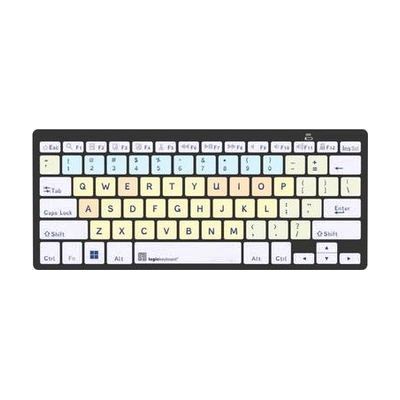
Dyslexie - MAC Bluetooth Mini Keyboard
$114.90
This Bluetooth mini keyboard for Mac uses the Dyslexie typeface on its keys, a font made for people who find reading standard lettering hard. The keys are color-coded by group: vowels, consonants, numbers and function keys. That coding can help someone learn where each key sits. It was developed with dyslexiefont.com and comes with a cleaning tissue and cleaning instructions. This is a keyboard only, so you'll pair it wirelessly with your own Mac.
Verified 2 days agoSetup with instructions -
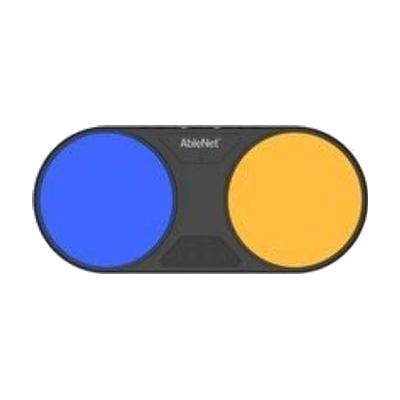
Blue2 FT
$260.00
The Blue2 FT is a wireless Bluetooth switch that activates when you touch it or bring a hand close to it, so no hard press is needed. It gives sound and light feedback when it triggers. It can control an iPad or iPhone through Switch Control, and it also works with Windows, Mac, and Chromebook software that responds to keyboard keys like space, enter, or 1 through 4. It has two jacks for plugging in extra switches, such as a Jelly Bean or Big Red, and the built-in sensors turn off automatically when an external switch is connected. It has a rechargeable battery and threaded inserts for mounting. Setting up the right access method, position, and software takes some trial and error, so this is best chosen with someone who knows switch access.
Verified 4 days agoProfessional guidance helps -
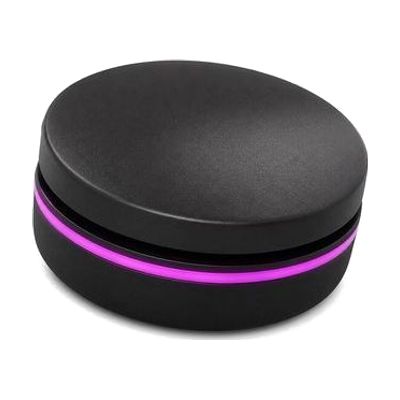
Solo Range
Est. $80–$350
The Solo Range is a family of small Bluetooth access devices that includes switches, a joystick and touch controls. They let someone operate a tablet or computer wirelessly when a standard touchscreen, mouse or keyboard is hard to use. The range works with Android, iOS, Mac and Windows devices. Because the range offers several different input styles, the main task is matching the right one to how the person moves and what they need to do on the device. Choosing the right piece and setting it up usually goes better with an OT, SLP or ATP.
Verified 1 week agoProfessional guidance helps -

VoiceOver
Free
VoiceOver is the screen reader built into Apple devices. It speaks what's on the screen out loud, sends it to a braille display, or does both, so someone who can't see the screen can still use their device. You move around with gestures on a touchscreen or trackpad, or with a Bluetooth keyboard. You can adjust the voice, speaking speed, how much detail it gives, and the sounds and haptic (vibration) feedback. It can also describe images and screen elements, even in apps and web pages that don't label them, and it can describe things the camera sees, like people, doors, text, and furniture. Some features are not offered in every region or language.
Verified 3 days agoSetup with instructions -
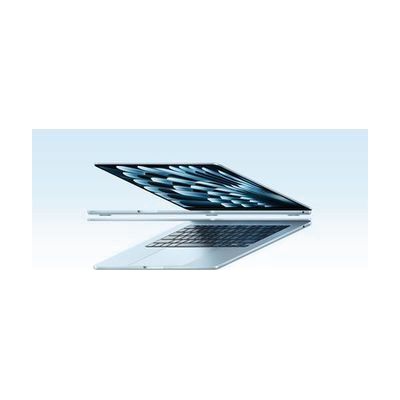
MacBook Air 13-inch and MacBook Air 15-inch
$1,099.00
The MacBook Air is Apple's thin, light laptop, sold in 13-inch and 15-inch screen sizes. It is a general-purpose computer, not a dedicated assistive device, but macOS includes built-in accessibility options and works with the other Apple devices a person may already own. That makes it a common starting point for computer access across many needs, including vision, hearing, motor, learning, and communication. The 13-inch model is the more portable one, while the 15-inch gives you more screen space, which can matter if you use enlarged text or keep several windows open. The accessibility tools are there to use, but you choose and set them up yourself, so the laptop doesn't solve a specific access need until you've done that.
Verified 4 days agoSetup with instructions -
Apple Magnifier
Free
Magnifier turns the camera on an iPhone or iPad into a digital magnifying glass, so you can zoom in on print, labels, and small details right on the screen. You can change brightness, contrast, and color filters, switch on the flashlight, or freeze a frame for a steady close-up. It also reads out live descriptions of what the camera sees, as speech or high-contrast text. On models with LiDAR, a detection mode uses sounds and vibration to point out nearby people, doors, and furniture. The Mac version works with an iPhone camera or a USB camera. You need an Apple device to use it, and some of the newer features depend on the device model and Apple Intelligence.
Verified 3 days agoReady to use -
Plug and Play USB Switch
Est. $60–$130
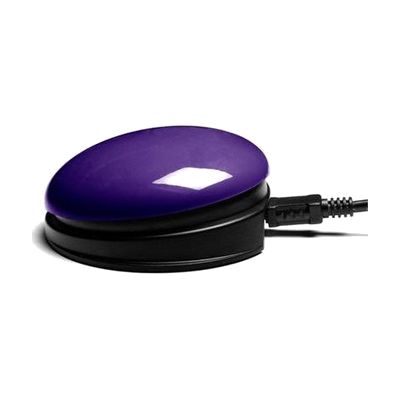
This switch has a 75mm pressing surface and a USB connection built in, so it plugs straight into a PC, Mac, or Chromebook with no separate switch interface or driver. It also has two 3.5mm sockets for connecting extra switches, and a small LED display on the device lets you choose what each switch does. Advanced settings can be adjusted for people whose movements are affected by tremor, ataxia, or chorea. It's a good fit for someone who needs a simple way to press a button instead of using a keyboard or mouse, and it can be fixed in place using the Small Inclusive Mounting Plate with Velcro. The switch only sends input, so the software or activity it controls is something you'll need to set up separately.
Verified 4 days agoProfessional guidance helps -

Apple Switch Control & AssistiveTouch
Free
Switch Control is the scanning feature built into Apple devices. It lets someone run an iPhone, iPad, Mac, or Apple TV without touching the screen the usual way. Instead, the device highlights items one by one, and you pick the one you want using an adaptive switch, a game controller, a head or hand gesture, AirPods gestures, Back Tap, or a simple sound like a click or pop. You can build custom panels and keyboards, save different profiles for different times or places, and use one device to control other Apple devices on the same Wi-Fi network. It's free software, but plan on setting up the scanning style and your input method before it feels comfortable. If you use a physical switch, you'll need to buy that hardware separately.
Verified 3 days agoSetup with instructions -

iMac
$1,299.00
The iMac is Apple's all-in-one desktop computer, with the screen and computer in one slim unit and an M4 chip inside. It runs macOS, which has built-in accessibility tools, and Apple Intelligence adds writing help like proofreading and rewriting text, plus photo search by description. It can also mirror your iPhone onto the big screen, which can make the phone easier to see and control. This is a general-purpose computer, not a dedicated AT device, so the benefit depends on turning on and tuning the accessibility features that fit the person using it.
Verified 4 days agoSetup with instructions -

Dyslexie Keyboard MAC
$132.00
This Mac keyboard prints its keys in the Dyslexie typeface, a font made with dyslexiefont.com for people who find standard letter shapes hard to read. The vowels, consonants, numbers and function keys each have their own color, which helps someone learn where every key sits. It's a good fit for a person with dyslexia who is learning to type or who wants easier-to-read keys at a Mac. The box also includes a USB LogicLight, a small 10-LED light that plugs in and lights up the keys.
Verified 2 days agoReady to use -
Crick USB Switch Box
Est. $40–$80
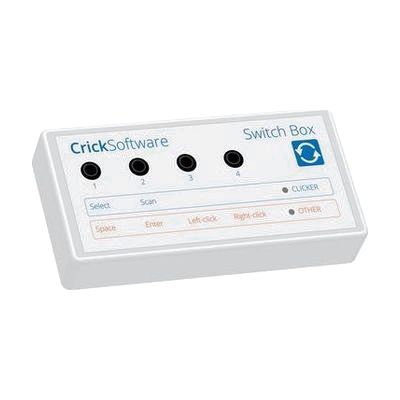
The Crick USB Switch Box connects one or more assistive switches to a Mac or PC through a USB lead, which is included. It works with Clicker, a popular educational and communication program, with no setup, so someone who can't use a mouse or keyboard can control the software with a switch. It is built for people who need dependable switch access across different software for learning and communication. This is the interface only, so you'll need your own switches and a switch-accessible program to get any benefit from it.
Verified 4 days agoProfessional guidance helps -
SEND-6
Est. $150–$350
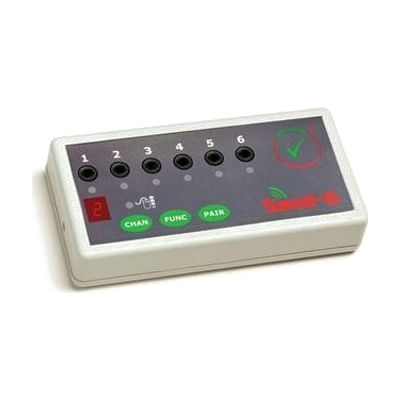
The SEND-6 is a wireless switch interface. You plug up to six wired switches into it, and it sends their signals to a Windows PC or Mac without a cable running to the computer. That helps if someone's wheelchair puts them away from the screen, or if they can't sit close to the computer. Each switch can be set separately to one of 24 functions, including switch accessible software, game pad, mouse and keyboard actions. It needs no software or drivers, so setup is mostly about choosing which switch does what. It's one piece of a switch system: you need your own switches, the it-Receive receiver that plugs into the computer, and 2 AAA batteries.
Verified 4 days agoProfessional guidance helps -
Dyslexie Keyboard
$132.00
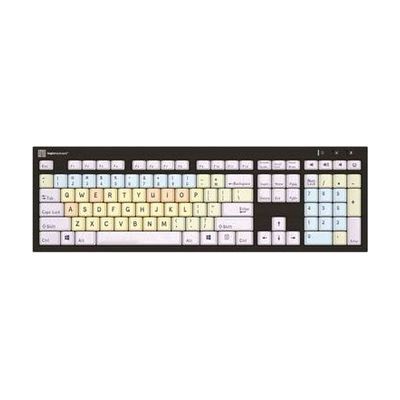
This is a Mac keyboard with key labels printed in the Dyslexie typeface, a font made for readers with dyslexia, so the letters on the keys are easier to tell apart. Vowels, consonants, numbers and function keys each have their own color, which helps someone learn where everything sits. It's a good fit for a learner who is still building typing skills or who finds standard key labels hard to read. A USB LED light comes in the box and lights up the keys when plugged in.
Verified 2 days agoReady to use -
Helperbird
Free plan · paid up to $35 every year
Helperbird is a browser extension that adds reading and writing supports to the websites and documents you already use. It can read text aloud, switch pages to dyslexia-friendly fonts like OpenDyslexic and Lexend, lay a color overlay over the screen, and show a reading ruler to keep your place on the line. For writing, it offers voice typing with word prediction, and a screenshot reader that can read text out of an image. It runs in Chrome, Firefox, Edge and Safari, on Chromebooks, on iPad and iPhone, and as add-ons for Google Docs, Slides and Sheets. The everyday tools are free, and a paid Pro plan adds more for individuals, so check which features you need before deciding.
Verified 4 days agoSetup with instructions