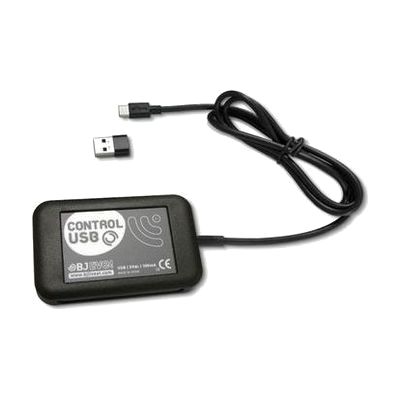
Control USB
Contact vendor for pricing
What it is
Summary
AI-generated from vendor-published content · October 1, 2026
The Control USB plugs into a Windows computer and lets someone run other devices from an on-screen grid. It sends infra-red signals to anything that takes an IR remote, such as a TV, a toy, or sensory equipment. It can also switch up to 16 mains-powered devices, but that needs the Enabler Socket+, which is sold separately. You build the grids yourself, choosing the pictures, the text, and the number and layout of cells, and one cell can run a whole sequence of commands. It works with The Grid 2, Grid 3, and PowerPoint, and with whatever access method the person already uses, including mouse, keyboard, or eye gaze. This suits someone who controls a computer in a non-standard way and wants to use it to run things around them.
Getting it
Try before you buy
Devices like this are often available to borrow through your state's AT Act program — typically free or low-cost — so you can try it before buying or pursuing funding.
Where to get it
This is the vendor WhatCanHelp tracks for this product — it may also be available from other retailers or a local supplier, and prices vary.
How to fund this
These are common places to ask about paying for equipment like this. Each one decides its own eligibility and what it covers, so start by asking them.
Details
Quick Facts Catalog facts · auto-generated
- Addresses
- Platform
- Age range
- Complexity
- Professional guidance helps
- Price
- Funding
- AT Act lending
- Medicaid waiver
- Out of pocket
- School district
- Vocational rehab
What setup looks like
- Out of the box
Plug the unit into a USB port on the Windows computer. - With a guide
- Open The Grid 2, Grid 3, or PowerPoint and set up the on-screen grids you want, choosing images, text, and cell layout.
- Teach the unit the IR commands for each device, such as a TV or toy, and link them to grid cells. Add the Enabler Socket+ if you want to switch mains devices.
- Test each cell with the person's own access method and adjust the layout until it works for them. Plan on an hour or more for a first set of grids. See manufacturer support resources for detailed instructions.
- With professional help
An AT specialist, OT, or SLP can help choose which devices to control, design grids that fit the person's access method, and set up macros. This usually takes one or two sessions.
Compare & explore
Sources & fine print
Vendor facts (name, price, platforms, vendor link) sourced from Inclusive Technology — view on vendor site (opens in a new tab); last checked October 31, 2026.
Classification & description AI-generated from vendor-published content on October 1, 2026 · confidence: high. Vendor specs may lag; verify before relying on details in a clinical or funding artifact.