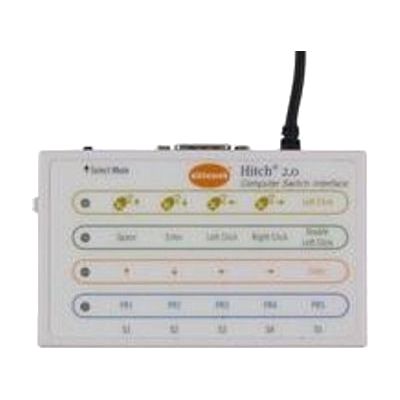
Hitch 2
by AbleNet
Price is what the vendor listed when last checked. Confirm it with the vendor before buying.
Last verified September 17, 2026 · classified April 26, 2026
What it is
Summary
AI-generated from vendor-published content · April 26, 2026
The Hitch 2 is a USB switch interface that connects up to five external switches or a joystick to a Windows, Mac, Chromebook, or Android device, translating switch activations into keystrokes or mouse movements that the computer can understand. It's designed for someone who cannot use a standard keyboard or mouse and needs to control a computer through one or more switches — for example, using scanning in educational software, accessing communication apps, or browsing. This is not a standalone solution: you'll need at least one compatible switch (sold separately), a computer, and switch-accessible software to get any benefit from it. The Hitch 2 itself is just the bridge between those switches and your device, so the overall complexity of the setup depends heavily on the software you're pairing it with and how switch scanning is configured.
Quick Facts Catalog facts · auto-generated
- AT Act lending
- Medicaid waiver
- Out of pocket
- School district
- Vocational rehab
What Setup Looks Like
- Out of the box
Plug the Hitch 2 into a USB port — it is recognized as a USB HID device with no driver installation needed. - With a guide
- Connect one or more external switches to the 3.5mm switch jacks or a joystick via the 9-pin D connector.
- Use the Hitch 2's built-in interface to assign keystrokes or confirm default scanning keys match your switch-accessible software.
- Enable Switch Control in macOS or configure scanning settings in your target software, then test each switch for correct response — allow 30–60 minutes total. See manufacturer support resources for detailed instructions.
- With professional help
- An assistive technology professional (ATP) or occupational therapist (OT) should assess which switches, access method (single-switch scanning, two-switch scanning, joystick), and scanning speed are appropriate for the user.
- An SLP or ATP should configure the switch-accessible software to match the user's motor abilities and communication or learning goals.
- Expect 1–3 sessions over several weeks to dial in optimal settings and build user proficiency.
Getting it
Try Before You Buy
Devices like this are often available to borrow through your state's AT Act program — typically free or low-cost — so you can try it before buying or pursuing funding.
Where to Get It
This is the vendor WhatCanHelp tracks for this product — it may also be available from other retailers or a local supplier, and prices vary.
Some links may be affiliate links — WhatCanHelp may earn a small commission from purchases at no extra cost to you. More on affiliates →
As an Amazon Associate we earn from qualifying purchases.
How to Fund This
Equipment like this is often pursued through official state programs. These are common starting points — each program decides its own eligibility and what it covers, so the first step is always a phone call.
Compare & explore
Sources & fine print
Vendor facts (name, price, platforms, vendor link) sourced from AbleNet — view on vendor site; last verified September 17, 2026.
Classification & description AI-generated from vendor-published content on April 26, 2026 · confidence: high. Vendor specs may lag; verify before relying on details in a clinical or funding artifact.